Project Workspaces
Persist context across multiple sessions for long-running upgrade plans and research.
Projects keep your upgrade plans, research findings, and environment details alive across sessions. Start a CUCM upgrade today, come back next week, and Damira remembers where you left off.
Prerequisites
- Tier: Starter or above
- VS Code extension v0.29.0+
How It Works
Automatic Creation
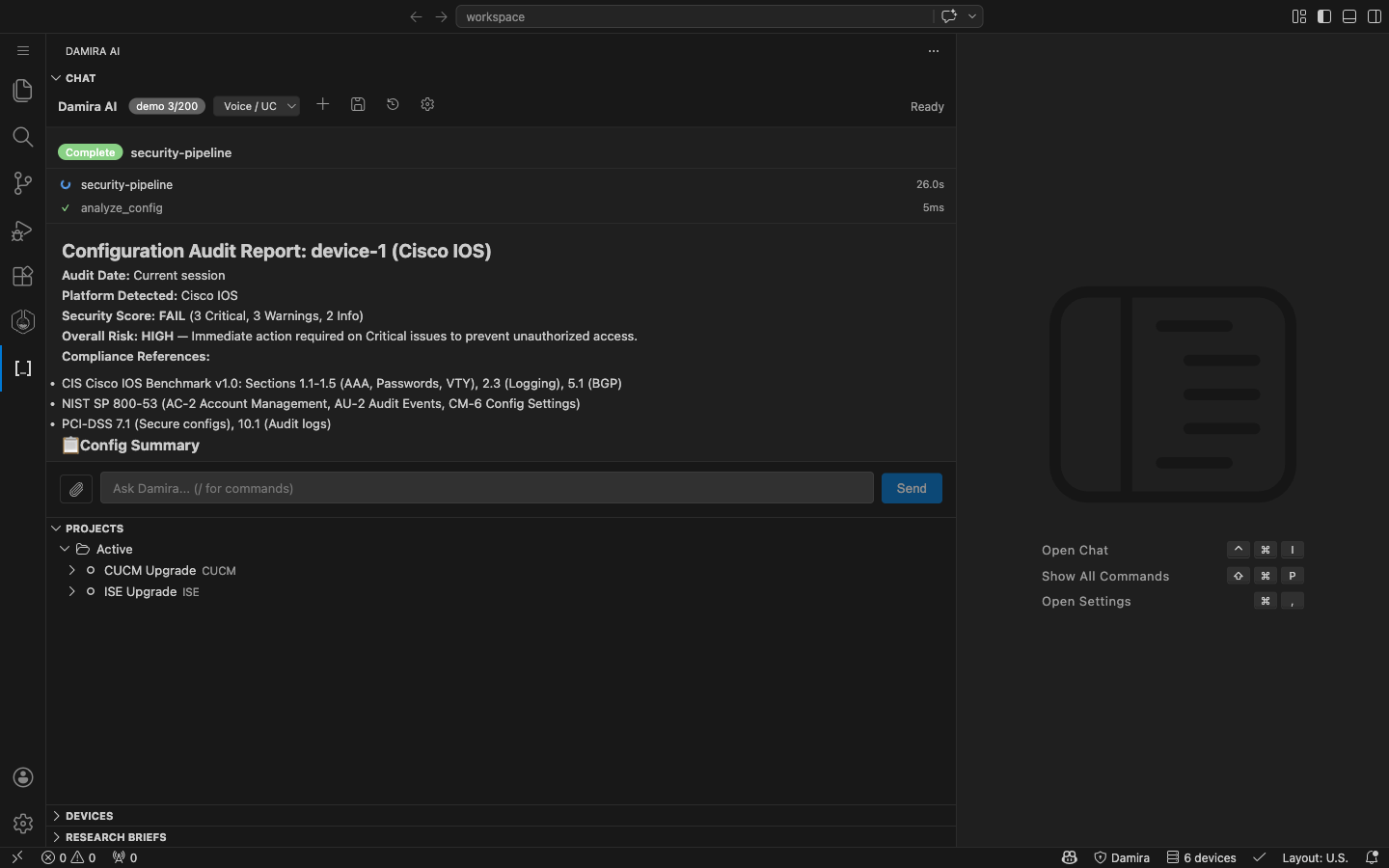
Projects are created automatically when you start an upgrade or migration workflow. You'll see a project appear in your VS Code sidebar with the product name and workflow type.
Session Resume
When you return to the same conversation, Damira picks up exactly where you left off:
- Your environment details are preserved
- Research findings stay available
- Partially-completed spreadsheets can be continued
Resume happens automatically within the same session. For cross-session resume, click the project in VS Code's project panel — this sets it as your active project and Damira resumes from where you left off.
Multi-Project Support
You can work on multiple projects concurrently. Each project has its own isolated state — starting an ISE upgrade won't interfere with your in-progress CUCM upgrade. Clicking New Chat clears the active project so you start fresh without cross-contamination.
Research Briefs
Deep research results are saved as briefs inside your project. When you later ask for a MOP or change control, Damira pulls in the relevant research automatically.
You can also right-click a research brief in the sidebar and choose Roll into Spreadsheet or Roll into MOP to generate a deliverable directly from the research findings.
Examples
Creates project: "CUCM Upgrade"
Creates project: "ISE Upgrade", saves research brief
Managing Projects
In VS Code:
- Projects panel (sidebar) — see all active projects grouped by status
- Click a project — set it as active context, resume where you left off
- Expand a project — see its files (spreadsheets, research briefs, scaffold docs) grouped by type
- Click a file — spreadsheets open in the interactive editor, scaffold files render as formatted HTML, markdown opens in preview
- Right-click a research brief — roll it into a spreadsheet or MOP without re-explaining your environment
- New Chat — clears the active project and starts a fresh conversation
Tips
- Each upgrade or migration gets its own project — don't mix products in the same conversation
- Research briefs from one session feed into spreadsheet generation in the next
- Projects auto-complete when the final spreadsheet is delivered
- New Chat clears the active project but doesn't delete it — your saved work is safe
- You can have multiple projects of the same type (e.g., two separate CUCM upgrades for different sites)
- Use the right-click context menu on research briefs to generate deliverables from existing research
Related
- Upgrade Planning — The multi-stage workflow that creates projects
- Research — Deep research with brief persistence